

Focusrite Scarlett Install and Setup Guide
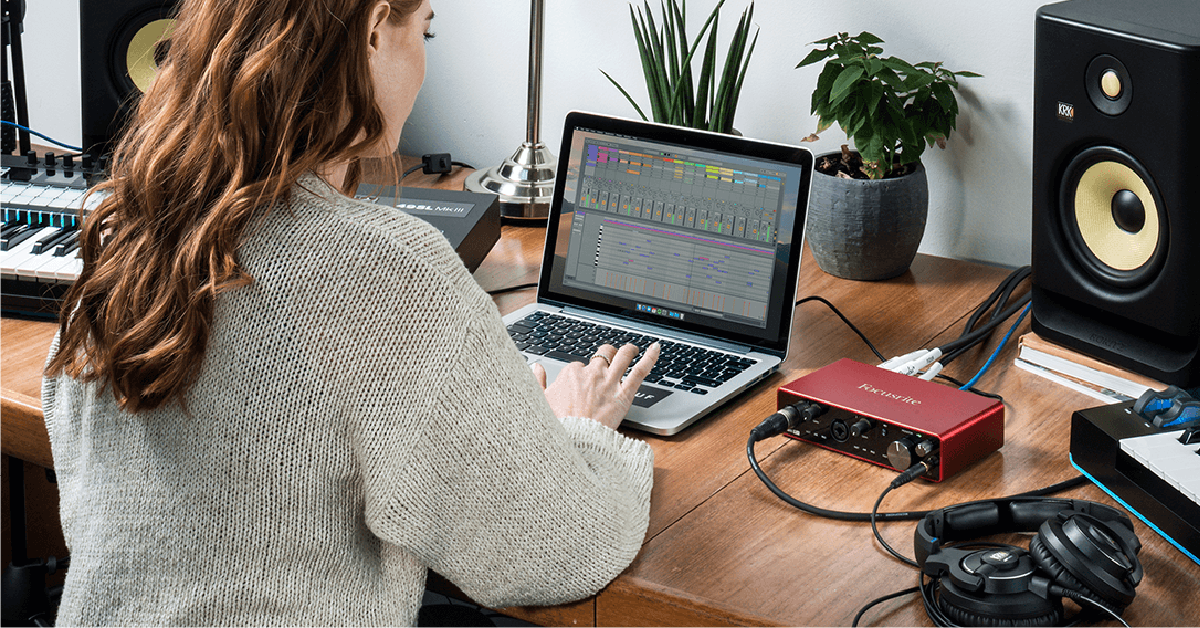
In this guide, you will learn how to set up a Focusrite Scarlett audio interface. We will show you how to connect it to your computer and get audio in and out of the device. Follow each of the sections below to get started.
- Focusrite Scarlett Journey
- Registration and bundled software
- Install Focusrite Control driver
- Setup and connections
- Update computer sound settings
Focusrite Scarlett Journey
Focusrite has made you an online setup guide to get started with your Scarlett interface. It walks you through the registration process and even has videos for setting up and getting started with the bundled DAW software. Click the image below to get started and enjoy using your new Scarlett! Return to this page at any time for more information and step by step instructions.
- Connect your Scarlett interface.
- Double-click the Scarlett device icon and open the link to get started.
Scarlett – Easy Start Tool // Focusrite
Registration and bundled software
Generation 3 Scarlett interfaces are bundled with Ableton Live Lite and three plug-in packages (Softube’s Time and Tone Bundle, Focusrite Red Plug-In Suite, and access to the Focusrite Plug-in Collective). In order to get them, you’ll need to create an account and register your Scarlett. Their online registration guide is fast, but manual registration works, too.
- Create a Focusrite account or log in to your current account.
- Once logged in, go to the product registration page.
- Use the drop-down list to select your Scarlett interface.
- Complete the form by entering your Scarlett’s Serial Number and click Submit.
- Go to the My Software page in your account to access the bundled software.
Install Focusrite Control driver
Focusrite Control is the driver software required by most Scarlett interfaces. In order to connect the Scarlett interface to your computer, its driver software must first be installed. Once installed, launch the Focusrite Control app to configure the Scarlett’s settings and create custom monitor or headphone mixes.
Do I need Focusrite Control?
2i2 and Solo interfaces are class compliant on Mac computers. That means they will work with the default Mac drivers and only need Focusrite Control for remote control or adjusting settings.
- Go to the Focusrite Downloads page.
- Select your Brand (Focusrite), Product Range (Scarlett), and Product Type (model).
- Find and click the latest software version compatible with your operating system to download it.
- Open your computer’s Downloads folder.
- Complete the software installation:
- PC: Double-click the .exe file and follow the on-screen instructions.
- Mac: Double-click the .dmg file, and in the new window that appears, double-click the .pkg file and follow the on-screen instructions.
- Restart your computer.
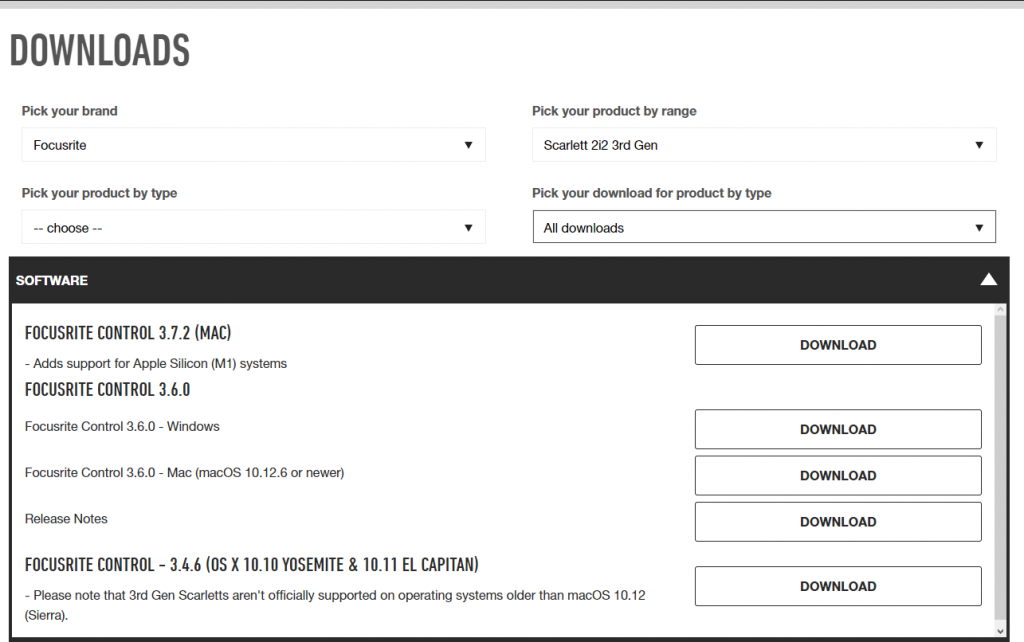
Click the image to download Focusrite Control
Setup and connections
After registration and installation, it’s time to connect the Scarlett. Scarlett interfaces have a USB-C port for connecting directly to your computer and operate on the USB 2.0 protocol for maximum compatibility. Solo and 2i2 are bus powered, which means they receive power over the USB connection instead of a power adapter. Other Scarlett devices like require a power adapter/cable and additional driver software to work correctly.
Scarlett not showing up?
Reconnect the interface by unplugging and plugging it back in. If you have not done so yet, try reconfiguring the USB connections so that Scarlett is connected directly to your computer. Sometimes USB hubs are unable to provide enough power for bus-powered devices like 2i2 or Solo, and this is especially true for hubs that do not have their own power supply (aka passive hubs). If the problem persists, try a different USB port or cable. Visit our Windows and Mac guides for more tips on resolving audio device connectivity.
MIDI ports
Scarletts with 5-pin MIDI ports can connect with MIDI devices. While some MIDI devices require their USB connections for full functionality, the Scarlett’s MIDI ports are useful if your device has MIDI ports, plus you’ll save a USB port. For example, you can connect a MIDI keyboard to play virtual instruments, or even connect an external synthesizer and play/trigger it with a MIDI track inside your DAW. Learn more about setting up MIDI keyboards and DAW controllers.
Are the MIDI ports not working?
If the MIDI connections aren’t working properly, be sure to check the routing in your DAW. If the routing is correct and it still it isn’t working try a different MIDI cable. Also be sure to check out our MIDI troubleshooting guide for more information.
Connecting with ADAT or S/PDIF
Scarlett 8i6, 18i8 & 18i20 interfaces also have ADAT & S/PDIF connections (8i6 S/PDIF only). These digital connections are used to connect and route audio with other devices. S/PDIF connections are digital (not analog RCA) and pass stereo audio, while ADAT is often used to connect additional preamps or D/A converters, like the Scarlett Octopre. Visit our Scarlett connection instructions for ADAT and S/PDIF to learn more.
Update computer audio settings
When your computer plays audio, the sound is output through a selected audio device. To select your Scarlett as a Mac or PC’s audio device, you’ll need to update the Sound settings. These settings will apply to most apps and features, but most audio software has its own audio settings, too. That just means your DAW or other related audio software needs to know what the audio device is and which input and output streams are which. To test audio playback with your new Scarlett, update the computer’s Sound settings and then play sound from a web browser, like a video from our YouTube channel.
macOS sound settings
- From the Menu Bar, click the Apple icon and select System Preferences.
- Click Sound.
- Under the Output tab, select your audio device.
Windows PC sound settings
- From your Windows taskbar, right-click the sound icon and select Playback devices.
- Select your audio interface and then click Set Default.
- Click OK to close the menu.
Continue to Focusrite Control 2
Once your Scarlett set up and connected, you’ll need to set up your routing within Focusrite Control 2.
When you need help, Sweetwater has the answers!
Our knowledge base contains over 28,000 expertly written tech articles that will give you answers and help you get the most out of your gear. Our pro musicians and gear experts update content daily to keep you informed and on your way. Best of all, it’s totally FREE, and it’s just another reason that you get more at Sweetwater.com.


Offer applies only to single-receipt qualifying purchases. Select manufacturers may require that only the manufacturer’s products qualify towards the minimum purchase amount needed to be eligible for promotional financing. Otherwise, an invoice that meets the minimum purchase amount and contains at least one qualifying manufacturer product is eligible for promotional financing. No interest will be charged on promo purchase balance, and equal monthly payments are required on promo purchase until it is paid in full. The payments equal the amount financed divided by the number of months in the promo period, rounded up to the next whole dollar. These payments may be higher than the payments that would be required if this purchase was a non-promo purchase. During the last month(s) of the promo period the required monthly payment may be reduced due to the prior months’ rounding. Regular account terms apply to non-promo purchases. New Accounts as of 07/31/2025: Purchase APR is 34.99%. Penalty APR is 39.99%. Min Interest Charge is $2. Existing cardholders: See your credit card agreement terms. Subject to credit approval.
Offer applies only to single-receipt qualifying purchases. No interest will be charged on the promo balance if you pay it off, in full, within the promo period. If you do not, interest will be charged on the promo balance from the purchase date. The required minimum monthly payments may or may not pay off the promo balance before the end of the promo period, depending on purchase amount, promo length and payment allocation. Regular account terms apply to non-promo purchases and, after promo period ends, to the promo balance. New Accounts as of 07/31/2025: Purchase APR is 34.99%. Penalty APR is 39.99%. Min Interest Charge is $2. Existing cardholders: See your credit card agreement terms. Subject to credit approval.
The estimated required monthly payment shown which excludes taxes and delivery equals the amount financed divided by the number of months in the promo period, rounded up to the next cent. During the last month(s) of the promo period the required monthly payment may be reduced due to this rounding. These payments apply only with the financing offer shown. If you make these payments by the due date each month, you should pay off this amount financed within the promo period, if it is the only balance you are paying off. If you have other balances on your account, this payment will be added to any other minimum monthly payments.
Applies only to select items from this manufacturer. Ask your Sweetwater Sales Engineer for more details.