Behringer PRO-1 Setup Guide
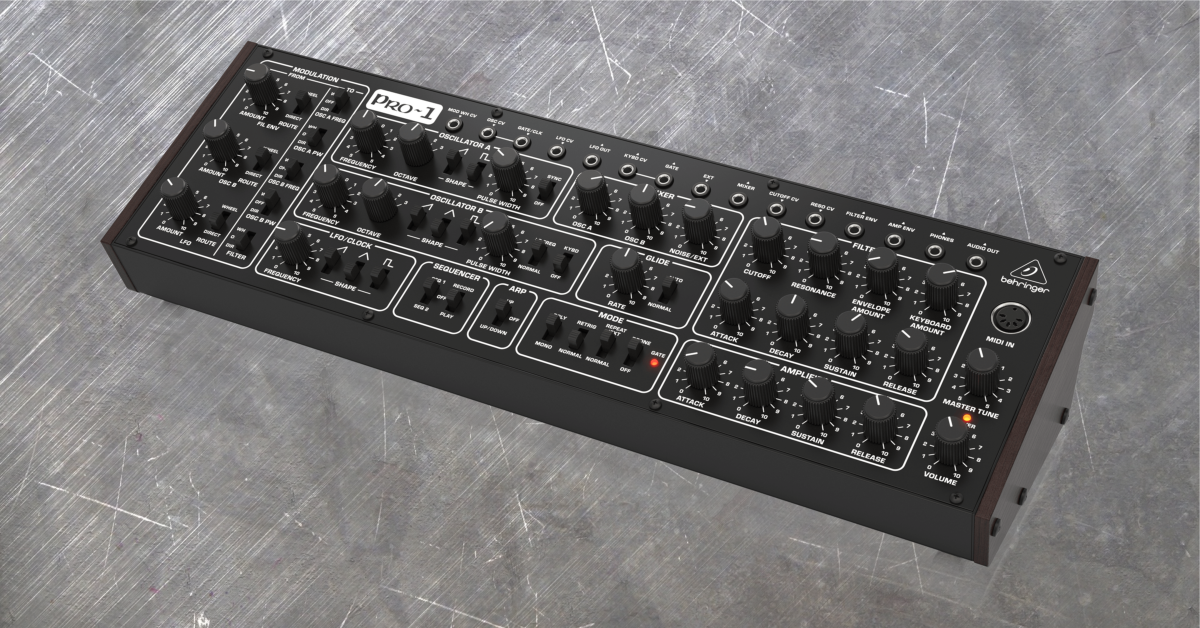
In this guide, we will show you how to get started with the Behringer PRO-1. We will go over how to set it up, create a sound, how the modulation section works, and how to use the sequencer and arpeggiator. We will also go over the different settings available in the Synthtribe software.
PRO-1 connections
Back panel
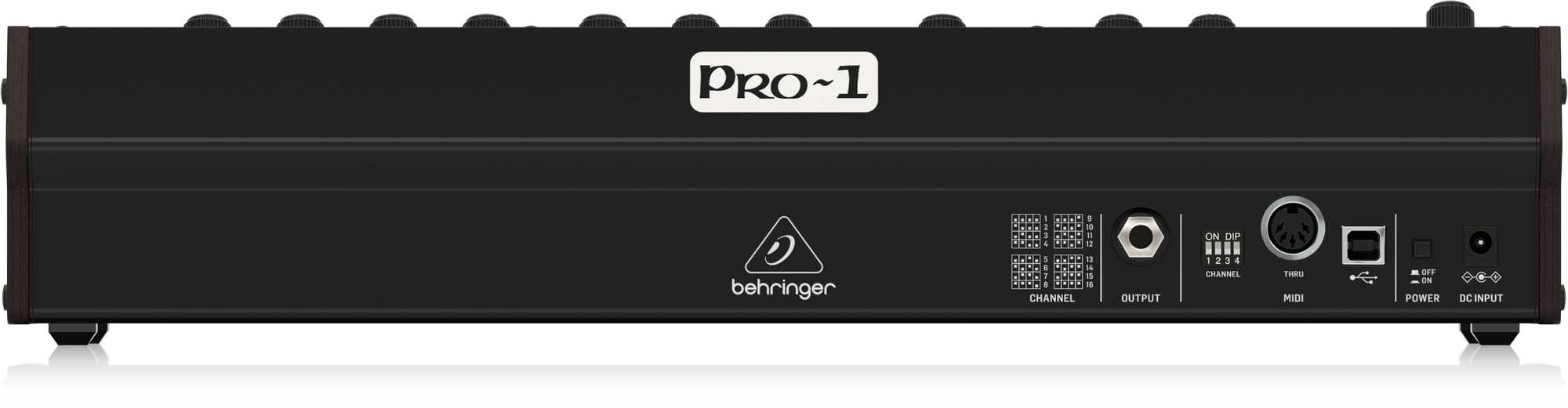
- OUTPUT: Line level output to connect to an audio interface/mixer/powered speakers.
- MIDI CHANNEL: Sets the MIDI input channel to control the PRO-1 from external gear. This diagram shows the positions the dip switches need to be in for each channel:
- (PRO-1 MIDI Channel.png)
- MIDI OUT/THRU: Outputs the MIDI data received from the MIDI IN and USB port. Also outputs MIDI notes from the PRO-1 arpeggiator or sequencer.
- USB: Sends MIDI information in and out to a computer/tablet. The PRO-1 will be recognized as a class-compliant MIDI device on the computer/tablet. This connection is also used to adjust the settings of the PRO-1 with the Synthtribe application on the computer/tablet.
Front panel
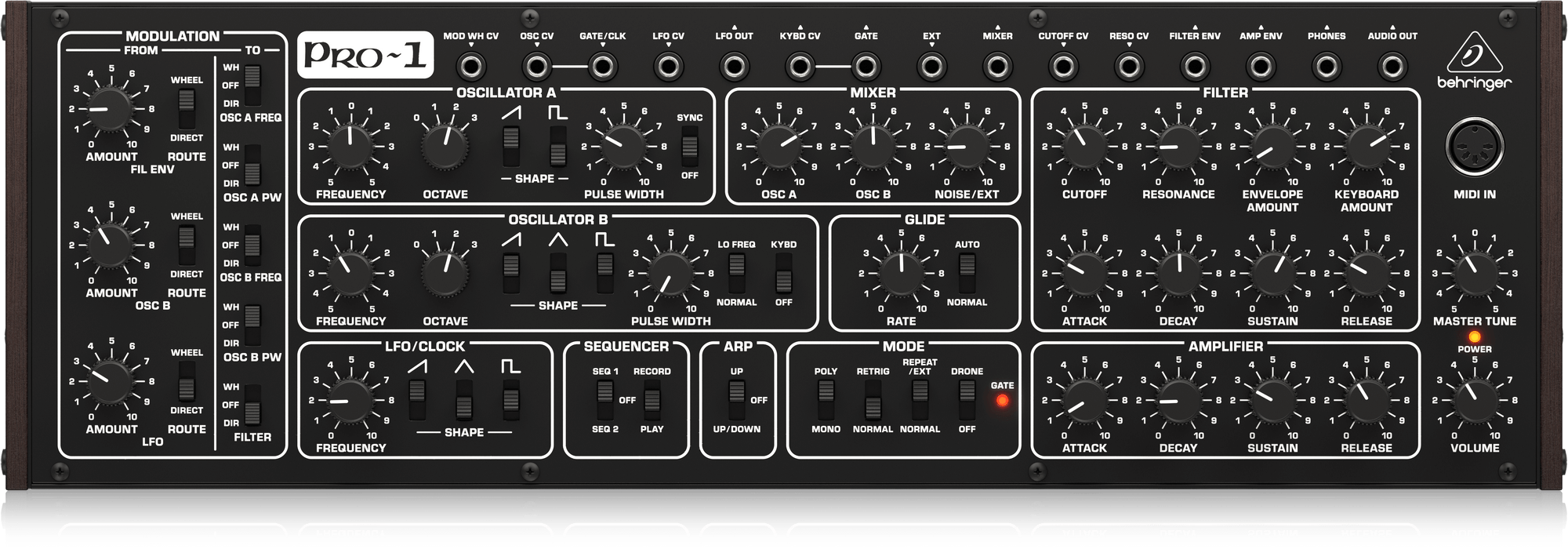
- MOD WH CV: CV Input from a mod wheel that has a CV Out.
- OSC CV: 1V/Oct CV pitch input to control the pitch of the oscillators.
- GATE/CLK: Clock/Gate input to control the sequencer and arpeggiator speed.
- LFO CV: CV input to control the rate of the LFO.
- LFO OUT: CV output of the LFO.
- KYBD CV: 1V/Oct CV pitch output generated from the MIDI IN, USB MIDI IN, sequencer, and arpeggiator.
- GATE: Gate output from the sequencer and arpeggiator.
- EXT: Audio input that passes through the filter and amplifier. When the EXT audio input is used, the noise source is disabled, and the NOISE/EXT knob controls the external audio level.
- MIXER: Output of the mixer.
- CUTOFF CV: CV input to control the filter cutoff.
- RESO CV: CV input to control the filter resonance.
- FILTER ENV: Outputs the CV generated by the filter envelope.
- AMP ENV: Outputs the CV generated by the amplifier envelope.
- PHONES: Headphone output.
- AUDIO OUT: Mono output of the PRO-1.
PRO-1 setup
LET IT WARM UP: You can play the PRO-1 while it is warming up, but the tuning may not be stable right away. This is because the PRO-1 has analog circuits that need to warm up to operating temperature for its tuning to stabilize. The warmup time may take a little longer, depending on the room temperature.
- Turn the volume down on the bottom right of the PRO-1.
- Connect the PRO-1 PHONES output on the front to headphones, or connect the OUTPUT on the back with a TS or TRS cable to the line input of a device like a keyboard amp, powered speaker, mixer, or interface
- Power it on and let it warm up for about 15-20 minutes.
Creating sound on the PRO-1
Once you have everything set up and connected, let’s create a basic sound! The patch we’ll be providing should create a simple sawtooth sound that drones. This is a basic sound, and we’ll go through the settings, section by section, but once you’ve dialed it in, feel free to adjust the controls more to get the sound you want!
OSCILLATOR A
- FREQUENCY: Set to 0.
- OCTAVE: Set to 1.
- SAW SHAPE: Set to the up position.
- SQUARE SHAPE: Set to the down position.
- PULSE WIDTH: Set to 0.
- SYNC: Set to OFF.
OSCILLATOR B
- FREQUENCY: Set to 0.
- OCTAVE: Set to 3.
- SAW SHAPE: Set to the up position.
- TRIANGLE SHAPE: Set to the down position.
- SQUARE SHAPE: Set to the down position.
- PULSE WIDTH: Set to 0.
- LO FREQ: Set to NORMAL.
- KYBD: Set to the up position.
MIXER
- OSC A: Set to 5.
- OSC B: Set to 0.
- NOISE/EXT: Set to 0.
FILTER
- CUTOFF: Set to 10.
- RESONANCE: Set to 0.
- ENVELOPE AMOUNT: Set to 0.
- KEYBOARD AMOUNT: Set to 0.
- ATTACK: Set to 0.
- DECAY: Set to 0.
- SUSTAIN: Set to 0.
- RELEASE: Set to 0.
AMPLIFIER
- ATTACK: Set to 0.
- DECAY: Set to 0.
- SUSTAIN: Set to 10.
- RELEASE: Set to 0.
MASTER (bottom right)
- MASTER TUNE: Set to 0.
- VOLUME: Set to 5.
MODULATION FROM
- FIL ENV AMOUNT: Set to 0.
- FIL ENV ROUTE: Set to DIRECT.
- OSC B AMOUNT: Set to 0.
- OSC B ROUTE: Set to DIRECT.
- LFO AMOUNT: Set to 0.
- LFO ROUTE: Set to DIRECT.
MODULATION TO
- OSC A FREQ: Set to OFF.
- OSC A PW: Set to OFF.
- OSC B FREQ: Set to OFF.
- OSC B PW: Set to OFF.
- FILTER: Set to OFF.
LFO/CLOCK
- FREQUENCY: Set to 0.
- SAW SHAPE: Set to the down position.
- TRIANGLE SHAPE: Set to the down position.
- SQUARE SHAPE: Set to the down position.
SEQUENCER
- First Switch: Set to OFF.
- Second Switch: Set to PLAY.
ARP
- Switch: Set to OFF.
MODE
- First Switch: Set to MONO.
- Second Switch: Set to NORMAL.
- Third Switch: Set to NORMAL.
- Fourth Switch: Set to DRONE to output a constant sound. Set to OFF if you are using a MIDI controller.
GLIDE
- RATE: Set to 0.
- Switch: Set to NORMAL.
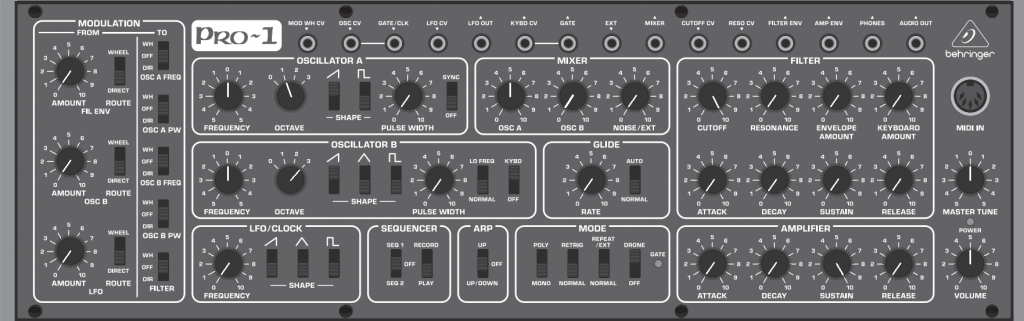
Pro-1 Default Patch settings
Modulation section
The modulation section has three different sources, five different destinations, and two modulation paths that you can create between the source and destination.
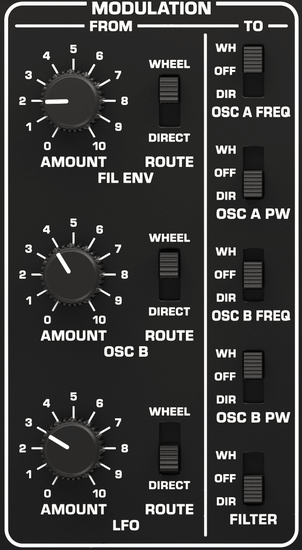
PRO-1 Modulation Section
Modulation sources in the FROM section
- FIL ENV: Modulation output from the envelope in the Filter section.
- OSC B: Modulation output from the Oscillator B section. Set the LO FREQ/NORMAL switch to normal if you want the Oscillator B to act as an LFO.
- Set the KYBD/OFF switch to OFF if you do not want the frequency of oscillator B to be changed by the notes you send from your MIDI controller.
- LFO: Modulation output from the LFO.
- A shape needs to be turned on in the LFO/CLOCK section for the LFO to output modulation.
Modulation sources in the TO section
- OSC A FREQ: Controls the pitch of Oscillator A.
- OSC A PW: Controls the pulse width of Oscillator A’s square wave.
- OSC B FREQ: Controls the pitch of Oscillator B.
- OSC B PW: Controls the pulse width of Oscillator B’s square wave.
- FILTER: Controls the filter cutoff.
Route path
The Route switch sets the path the modulation source is sent to. You can use all three modulation sources at once but you only have 2 paths to send to. This means that if 2 or all modulation sources are all set to route to the direct path, all destinations that are set to DIR will be controlled by those modulation sources. If you set one of those modulation sources to send to the wheel path instead, that modulation source will only control the destinations that are set to WH.
- DIRECT will send the source directly to all destinations that are set to DIR in the MODULATION TO section. The AMOUNT knob for that modulation source will directly control the amplitude of that modulation source.
- WHEEL will send the source to all destinations that are set to WH in the MODULATION TO section. The AMOUNT knob for that modulation source sets the maximum amplitude for the modulation source but to actually send the modulation, the mod wheel of your MIDI controller needs to be turned up or CV needs to be sent into the MOD WH CV jack on the front panel of the PRO-1. The mod wheel will then control the amplitude of the source with the range of 0 to the level that has been set with the AMOUNT knob for that modulation source.
Mode section
The mode section of the PRO-1 alters the way the synth behaves. We will go over each mode switch and what that switch does.
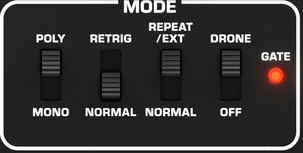
PRO-1 Modes Section
- POLY or MONO: This switch sets the PRO-1 to monophonic mode or two note paraphonic mode.
- RETRIG or NORMAL: This switch sets how the amplifier envelope should trigger when playing legato. Setting this switch to RETRIG will re-trigger the amplifier envelope every time a new note is played. Setting this switch to NORMAL will only trigger the first note played in the legato phrase.
- REPEAT/EXT or NORMAL: Setting this switch to REPEAT/EXT will repeatedly trigger the envelopes at the speed the LFO FREQUENCY knob is set to, or they will trigger every time a clock or gate signal is sent into the GATE/CLK CV input on the front panel. Setting this to NORMAL will have the envelopes set to trigger from a MIDI controller.
- DRONE or OFF: If set to DRONE, the sound will constantly output. You will need to turn up the sustain knob in the AMPLIFIER section to hear the sound. If set to OFF, you will only hear sound when the amplifier envelope is triggered via MIDI or repeat mode.
Arpeggiator and sequencer
The PRO-1 has a simple arpeggiator with two patterns and a 64-step sequencer that can hold two patterns. These features are great to have a musical line play while you adjust the parameters of the synth. To use the arpeggiator or sequencer, you will need a MIDI controller connected to the MIDI IN or the USB MIDI port.
Arpeggiator
To activate the arpeggiator, set the ARP switch to UP or UP/DOWN. Next, hold down the notes you would like to arpeggiate on your MIDI controller, and the PRO-1 will start arpeggiating the notes in the pattern you selected.
Sequencer
The Pro-1’s sequencer allows you to input up to 64 notes and rests for each of the two patterns. You will need a MIDI controller to record the notes to the sequencer, but once the sequence has been recorded, you can play the sequence without the MIDI controller.
Recording
- Create a patch or use the basic default patch in this guide.
- Connect a MIDI controller into the MIDI IN of the PRO-1.
- Set the switches in the sequencer section to OFF and PLAY.
- Set the second sequencer switch to RECORD.
- Set the first sequencer switch to the sequence you would like to record to, SEQ 1 or SEQ 2.
- Enter your notes by playing them on your MIDI controller. You can enter a rest by flipping the second sequencer switch to PLAY, then back to RECORD.
- Once you are done recording, flip the first sequencer switch to OFF.
Playing back
- Flip the second sequencer switch to PLAY.
- Flip the first sequencer switch to the pattern you recorded to, SEQ 1 or SEQ 2. Playback will start as soon as this switch is flipped.
- Pressing different MIDI notes on your MIDI controller will transpose the sequence.
Synthtribe settings
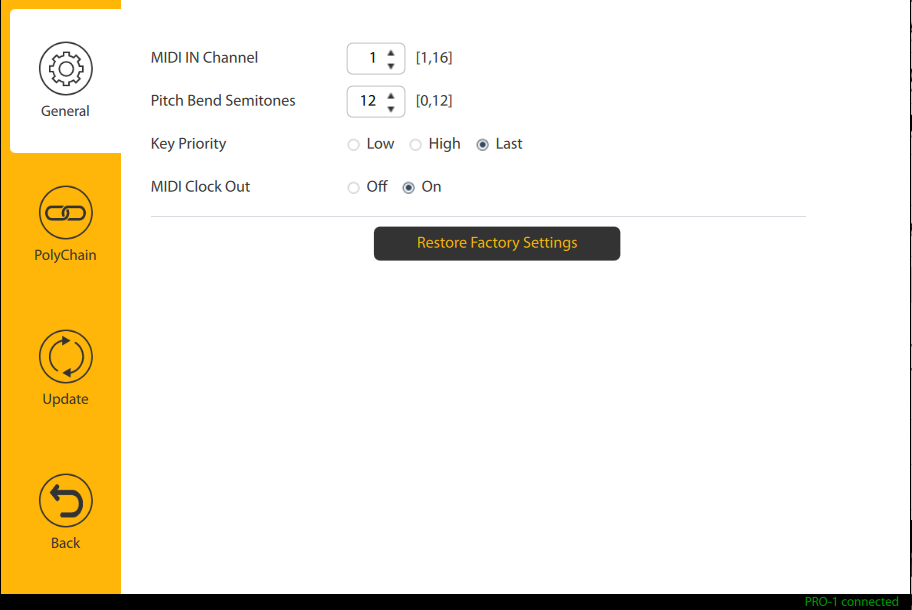
Connecting the PRO-1 to a computer with a USB cable will allow you to access additional settings for the PRO-1 through the Synthtribe application, which you can download from Behringer’s PRO-1 product page. The Synthtribe application also allows you to factory reset the PRO-1 and update its firmware.
General
- MIDI IN Channel: Selects the MIDI channel the PRO-1 will receive to be controlled from an external MIDI device.
- Pitch Bend Semitones: Adjusts the range of the pitch bend wheel from the MIDI Controller in semitones.
- Key Priority: Sets which notes will have priority when pressing more than one key in mono mode or more than two keys in poly mode.
- MIDI Clock Out: Sets whether the USB MIDI out or the 5-pin MIDI out connection should output MIDI clock signal.
- Restore Factory Settings: This will reset all settings on the PRO-1 to the default settings and erase the two sequences in the PRO-1.
PolyChain
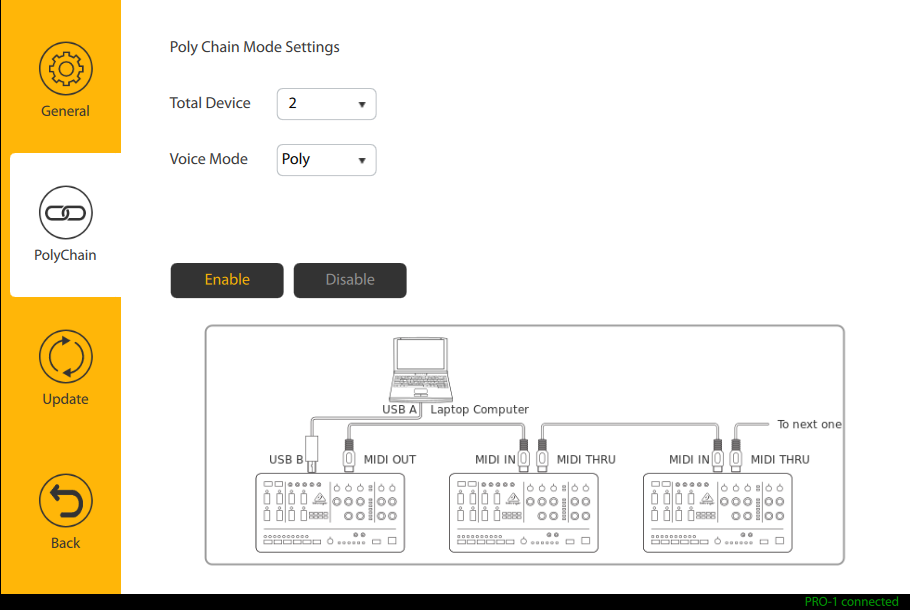
The Behringer PRO-1 can be set up as a PolyChain if you connect multiple PRO-1’s, up to 16. This gives you true polyphony as each PRO-1 will act as a voice, with each voice containing its own oscillator, filter, and VCA.
To set this up:
- Follow the wiring diagram as shown in this tab in the Synthtribe settings.
- Choose how many total PRO-1’s are being connected.
- Choose the voice mode you would like.
Mono will play all PRO-1s together to create a monstrous single voice. Poly mode will allow you to play as many notes as you have PRO-1’s connected together. Once the PRO-1’s have been connected, and the correct settings are selected, click enable to apply the PolyChain configuration to the PRO-1’s.
Update
You can check if your PRO-1 is up to date in the update tab of the Synthtribe software. This tab will display the version number and will let you know if there is an update available for your PRO-1.
Related Articles
When you need help, Sweetwater has the answers!
Our knowledge base contains over 28,000 expertly written tech articles that will give you answers and help you get the most out of your gear. Our pro musicians and gear experts update content daily to keep you informed and on your way. Best of all, it’s totally FREE, and it’s just another reason that you get more at Sweetwater.com.